How to upscale AI-generated video (Kling, Veo, Runway) to 4K for free

If you’ve used Kling, Veo, Runway, Hailuo or Luma, you’ve probably hit the same wall I keep hearing about from users: the clip itself looks great, but it comes out at 720p (or worse), and the moment you put it on a real screen or cut it into a 4K timeline, it looks soft.
That’s not a flaw in your prompt. Most of these models generate at a low resolution on purpose, because generating video is expensive and resolution makes it more expensive. So you get a good 5-second clip at a resolution that doesn’t match anything else you’re working with.
The fix is upscaling, and for short AI clips it’s genuinely quick to do for free. Here’s how.
Why AI clips are an easy case
I should be upfront about where browser-based upscaling is and isn’t a good fit, because I’d rather you get a good result than waste your time.
My free upscaler does all the work on your own device, frame by frame. For a 1-hour video that means leaving a tab open for a while, which some people find annoying. But AI-generated clips are usually 5 to 10 seconds long, so there’s barely any wait, and nothing ever gets uploaded to a server. Short clips are the case browser upscaling handles best.
The other reason it works well here: when I rebuilt this tool I threw out the off-the-shelf models and trained my own, specifically including AI-generated images and video as a category. AI footage has its own kind of softness, and a model that’s seen a lot of it does a better job than a generic one.
Step by step
-
Export your clip from Kling, Veo, Runway or wherever you generated it. An MP4 or WebM is fine.
-
Open the AI-generated video upscaler and click Select a video.

-
Pick your clip. Everything runs locally, so the file stays on your machine.
-
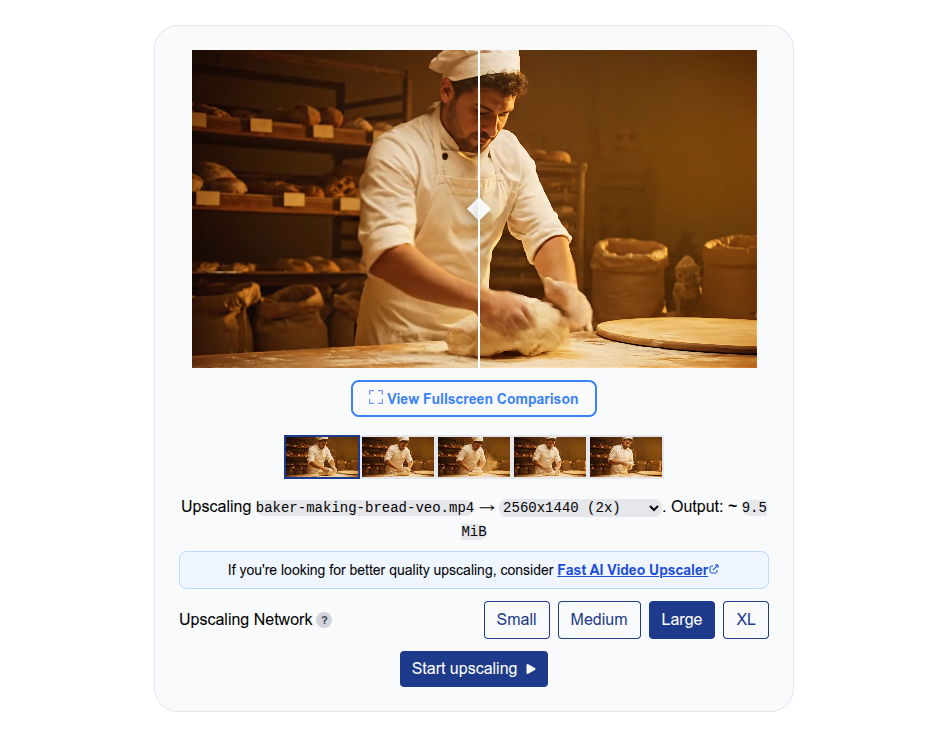
Choose your output resolution. A 720p clip goes to a clean 1080p, and from 1080p you can upscale it to 4K. If your source is small, going straight to 4K can be overkill, so 1080p is often the better-looking choice.
-
Let it process. For a short clip this is a matter of seconds, not minutes.

-
Download the result.

That’s it! No signup, no watermark, no resolution, time or credit limit. If it works for you, that’s the whole thing.
What to actually expect
Upscaling adds detail that’s plausible, not detail that was never there. It will sharpen edges, clean up the mushy look AI video tends to have, and make the clip hold up at a larger size. It won’t invent a face that the original frame didn’t contain, and if the source clip has heavy generation artifacts, upscaling will make those a bit more visible too. Start from the cleanest clip you have.
This tool does all the video upscaling on your device. While this enables you to upscale videos without limits or watermarks, this tool uses much lighter AI Upscaling models which can run reasonably quickly on a typical laptop, whereas most AI video enhancement services use GPU-grade AI models which require top-of-the-line GPUs (such as the NVIDIA RTX5090).
For AI generated videos exported at 720p or 1080p, there is less ‘detail’ to fill in, so this tool is almost always 90% as good as a server-gpu model without requiring an expensive GPU and $300+ desktop license for professional software.
If you do have a top of the line GPU, or one of the latest Macbook Pros, you will see an “XL” model which actually is a server-grade AI upscaling model, but it can be very slow.
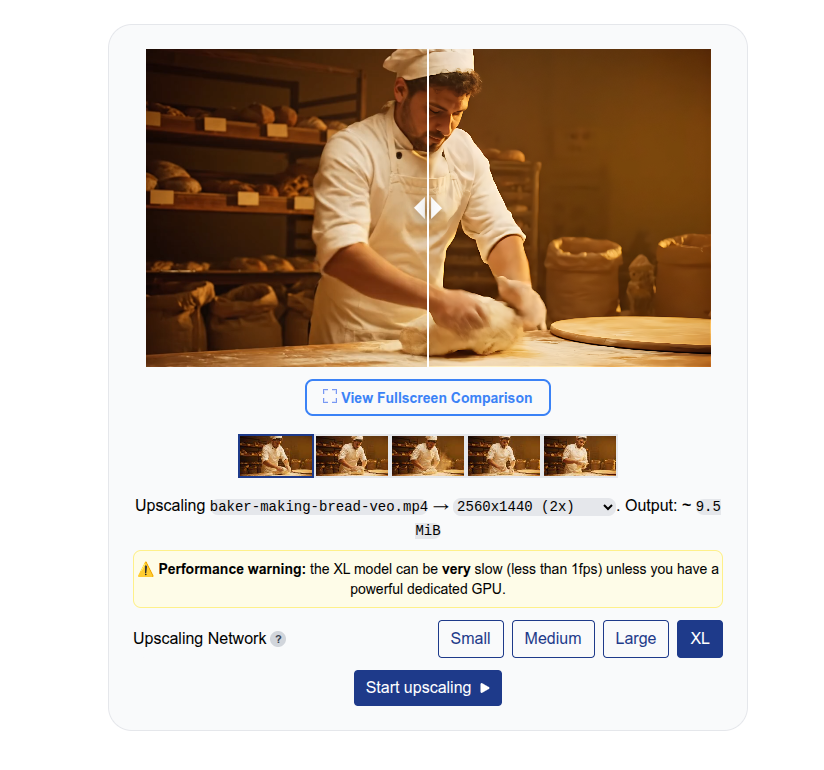
If you are looking for the best-quality with server-grade GPU models but don’t have a top-of-the-line GPU, you can check out Fast AI Video Upscaler which has GPU-grade AI models run on the cloud.
A note on browser support
This runs on WebGPU where it’s available, and falls back to WebGL where it isn’t, so recent Chrome, Edge, Firefox and Safari all work. If the tool ever loads slowly the first time, that’s it downloading the AI model once; it’s faster after that.
That’s really all there is to it. If you’ve got an AI clip that deserves a better resolution, upscale it for free here, and let me know on GitHub or Reddit if something doesn’t work the way you’d expect.